Hardware
Getting ram information
or if you want to get just the amount of ram you can do:
Another fun thing to do with ram is actually open it up and take a peek. This next command will show you all the string (plain text) values in ram.
Getting cpu info
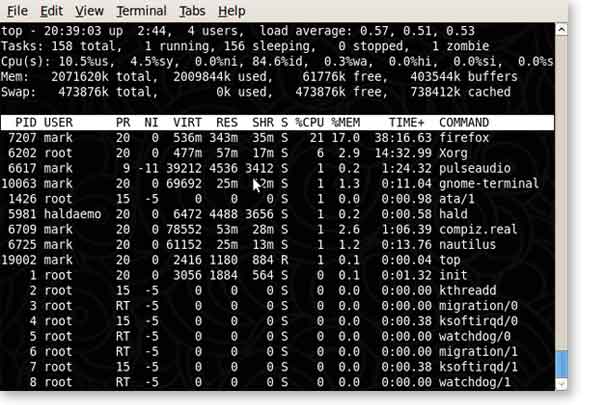
Sometimes in troubleshooting we want to know what processor we are dealing with along with how much cpu is currently being used by our OS and programs. We can do this with these two commands.

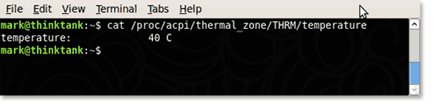
Check the temperature of your CPU
Keeping a computer within a safe temperature is the key to maintaining a stable system.


List PCI and USB devices
To list all the PCI devices in your system issues the following command:
For USB use:
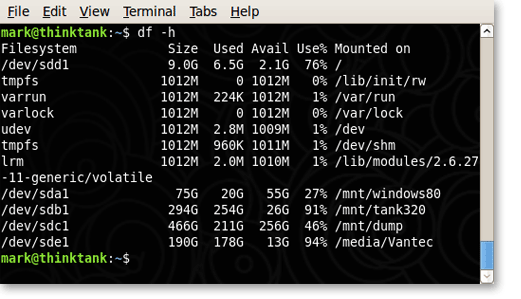
Check out how much hard drive space is left

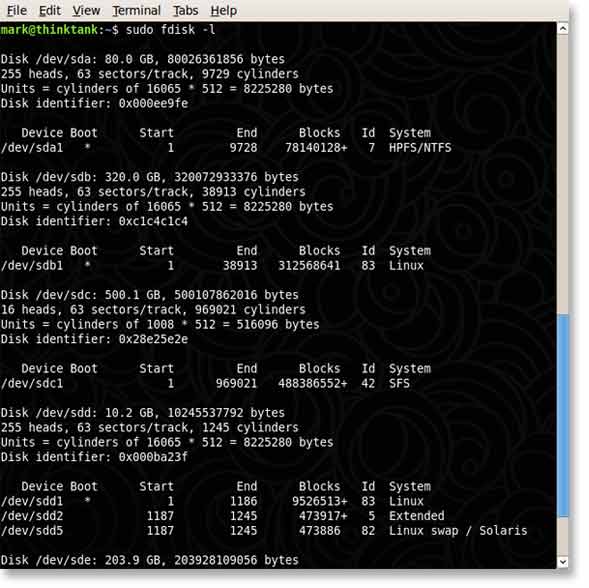
See what hard drives are currently detected
It is often times helpful to know what hard drives are connected to a system and what name was given them in the Linux directory. This info allows us to mount the hard drive and manipulate it.

Installed Programs
Packages
Ever want to find all the packages that are installed on your system? You can find all the packages and also find out why they are on your system. You can even determine what packages depend on them if any.
Find all installed packages
Find out why a packages is installed and what depends on it
Find out where the package stores all of its files
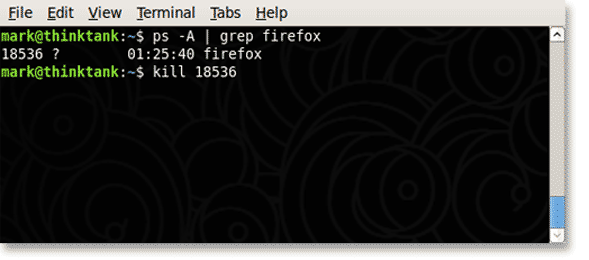
Kill a process

Miscellaneous
Go to a terminal
Show all network connections
There are many great network scanners and assessment tools available for Linux but netstat is a very easy to use often a first step in troubleshooting network issues. We will leave the rest of the network tools for a later article as there is so much to cover.
List all files that are currently open on the system
This command will allow you to see all the files that are currently open on your system. Limiting the directory or coupling this command with grep is often useful for finding files that are still open restricting the ability to unmount a device. Lsof will also ouput the process id or PID. You can then kill the process using the kill command above.
Keep an eye on something for awhile
The watch command will repeat a command at a set interval (default 2 seconds) and output the response. This is useful for watching directories that change, watching hard drives fill up when a lot of data is being transfered, or using it with lsusb to watch for USB devices being plugged in.
Find where a binary is stored and its libraries
Often times when running a cron command you want to include the absolute path to the command. Sometimes I run scheduled PHP tasks. This can be acomplished by using the ‘whereis‘ command.
Logs
See if you have kernel boot issues
For more logs just cd into the /var/log directory and start using, cat, less, tail, grep, find or any other tool to view and search.
Was this information useful?
24 Responses
-
This could be very useful; thank you!
-
Nice dude! I forgot about the watch command. Thanks!
-
miro
2-9-2009
Best command
fuser file.txt
prints the process using the file.
-
Mark Sanborn
2-9-2009
Miro,
Nice tip!
-
[...] General Troubleshooting in Linux Useful collection of tips. (tags: linux) [...]
-
I actually think the last command you issued is probably the first thing to check on a linux box thats having problems. Actually, its applicable to solaris as well and probably *BSD (guess I should check that later). I’ve uncovered more kernel module issues and bad hardware through it than almost anything else on my linux machines.
The temperature command is really interesting as well but I wonder how accurate it will be on various machines. It’ll be dependent upon the kernels understanding of the specific hardware monitoring chips installed on the board correct?
-
Mark Sanborn
2-9-2009
You are right about the temperature. I have seen systems where the temperature command returns null.
However, for the systems that return something it should be accurate as motherboards that support ACPI have to follow that specification.
-
Brian
2-10-2009
Great list. A faster way to get a process ID is the command pidof. Also you can kill a process from top by pressing “k” followed by the process id that you want to kill.
-
Mark Sanborn
2-10-2009
Wow, awesome tips thanks Brian!
-
What terminal font do you use, Mark?
-
Mark Sanborn
2-10-2009
The default monospace.
-
BigKahunaca
2-13-2009
Something unrelated, but your Copyright is still listed as 2008. Might want to change it.
-
BigKahunaca
2-13-2009
Good site btw, looking forward to more articles.
-
Mark Sanborn
2-13-2009
BigKahunaca, Thanks it’s fixed now…
-
Slacker 12.2
5-23-2009
Nice nice nice!! Keep it coming
-
Mark, here’s maybe a typo: dpkg –get-selections | less
It should be: dpkg -–get-selections | less
You missed a slash.
-
Mark Sanborn
9-8-2009
@Yang
Actually I think it is there but the font makes it appear to be a single dash. I will see what I can do to make them separate.
-
Yaro
9-17-2009
One issue with the “installed packages” section is that those programs only exist on distributions built on the Debian package system. I use Arch, it has its own packages and methods. And none of my tools are Debian-based. And of course, there’s the direct “competitor” to the Debian package system, the Red Hat packaging system, which also uses its own tools and is incompatible with the Debian system.
I don’t know the RPM commands, but here’s the pacman commands for Arch:
Find all installed packages
pacman -Q (I recommend piping this to less or more.)Find out where the package stores all of its files
pacman -Ql packagenameUnfortunately, I don’t think pacman or it’s EXCELLENT frontend wrapper (yaourt) has an aptitde why equivalent.
-
Spuffler
9-17-2009
For Ubuntu Netbook Remix v9.04, as installed and running on my EeePC 900A, the correct CPU temperature value is found using:
cat /proc/acpi/thermal_zone/TZ00/temperature
and FWIW, the memory strings trick produces several screens full of fairly raw output; noobs might want to pipe the output into a txt file if they do not understand how to get a terminal to scroll back by several screens….
-
Yaro
9-17-2009
Spuffler – Why pipe into a file? That sounds like a gross and, even worse, unneeded way to use space. Just pipe it through less like a good boy. No wasted space and one can scroll up and down and review.
Also, I see very little practical purpose in peeking at strings in memory.
-
Ubuntu/Debian based systems use dpkg.
Elitist snobbish bastards like me use “emerge -vpe world|less” on our systems.
But the rest was good.
-
nice tips for linux beginners.
now add some bash stuff for a little advance topic. -
David
10-5-2009
how to do check for no sound
-
Very useful!
Happy New Year


2-9-2009