
Introduction to GNU Screen
Last Updated: Mon, Apr 13, 2009What is Screen?
Screen is a full-screen window manager that multiplexes a physical terminal between several processes.
What the heck does that mean? Well it means that you are running a virtual terminal as a process. This allows you to do all sorts of neat things, from disconnecting and resuming the terminal where you left off, to mirroring the screen so students can watch your session, to split terminal screens. Screen is one of those tools that most system admins simply can’t live without.
Installing Screen
For Debian/Ubuntu based systems running Firefox you can install screen by clicking here. Otherwise use your package manager:
sudo apt-get install screen
You might have screen already installed on your distribution. Type, ‘which screen’ to find out.
What is it good for?
Leaving the Terminal
Probably the most common use for screen is attaching and detaching screen on a remote system. Let me explain. So you are doing some work on a system and you need to upgrade a few apps. A few minutes go by and you realize you have to leave. You need to know when the process finishes or if it even finishes at all. If you were to log into the machine from a different computer you would be able to tell if the task was still running by checking the running processes but you wouldn’t know if it finished OK, or if it needs user input since the SSH terminal is open to the original computer only. Screen can be setup to allow you to detach your session and resume it by connecting to another computer eliminating the problem that was just described which screen.
To do this start up screen with:
screen -S sessionname
Then do your task when you are ready to detach the console do:
Ctrl+a d
Now when you are ready to resume work you can use:
screen -r sessionname
Your session should restore exactly how you left it.
Split Windows
Using screen to have split console screens is another use for screen. This allows for some neat things. Programmers often use this so they can have their text editor open and a shell open below it to execute the program they are working with. This is especially useful for scripting languages like Perl or Python. You could also use a split screen to open a man page of the program you are working on.
Split the screen with:
Ctrl+a S
Create a new window with:
Ctrl+a c
You can resize with:
Ctrl+a :resize
Switch windows wtih:
Ctrl+a tab
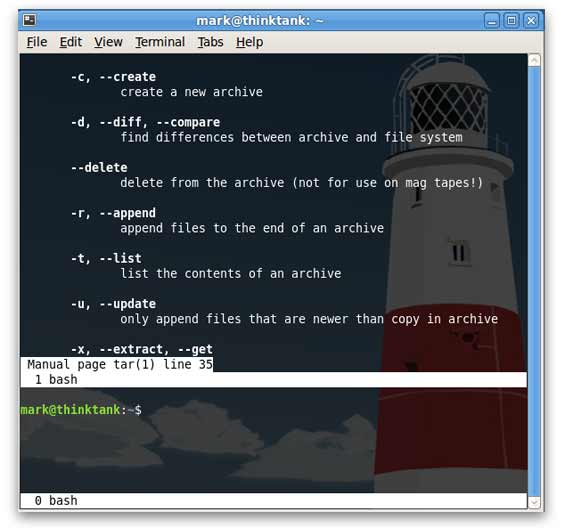
Kill a window with:
Ctrl+a k
Pair Programming
A less common approach to using screen is utilizing the multiuser mode to do pair programming or create a teaching environment.
Turn multiuser mode on:
Ctrl-a :multiuser on
Add permissions for user (change user to the username you want to allow screen access):
Ctrl-a :acladd user
Now instruct the second user to connect to the screen with:
screen -x user/sessionname
Now the session is shared and both programmers can type into the terminal.